How to Bulk Download AliExpress Images for Many Products
Downloading the photos for one product is quick. Doing it for twenty products is where things go wrong: files called Media.zip, Media (1).zip and Media (2).zip, photos from different listings mixed together, and no idea which supplier a picture came from.
This guide shows a simple way to bulk download AliExpress images and videos for many products: one ZIP per product, a name you can recognize, and a short sheet that ties every file back to its listing. If you only need one product, our guide on how to download AliExpress images is all you need.
How bulk downloading AliExpress images works
AliImageSaver reads the product page you have open. It finds the main images, the variant images, the description images and the product video, and saves them in one click. It doesn't take a list of links, so "bulk" here means working through your products one tab at a time, with the same few clicks for each.
That's good for quality. Each product page loads properly, you see how many files were found before you save them, and every product ends up in its own archive.
Set up AliImageSaver once before you start
Open the extension, go to the Settings tab and check three switches:
- Save as ZIP: on. Each download becomes one archive, so every product stays in a single file. The same switch is also on the Download tab.
- Organize in folders: your choice. When it's on, the ZIP goes into an
Ali-Mediafolder inside your Downloads folder, which keeps the batch away from everything else you download. Inside the archive, the files then sit in a folder named after the group you saved, such as All Media. - Open download folder: off. It's handy for a single product, but in a batch it would open a window after every download.
Bulk download AliExpress images, step by step
- Make your list first. Collect the product links in a sheet or a note before you download anything (there's an example sheet below).
- Open the products in tabs. Hold Ctrl (Cmd on a Mac) and click each link to open it in a new tab. Five to ten tabs at a time is easy to keep track of.
- Let each page load. In each tab, scroll through the description once so AliExpress loads the description images.
- Click the AliImageSaver icon and choose Download all media. Check the counts first: if a group shows 0 when you can see images on the page, refresh the page and open the extension again.
- Rename the ZIP right away (more on names below), then close the tab and move on to the next one.
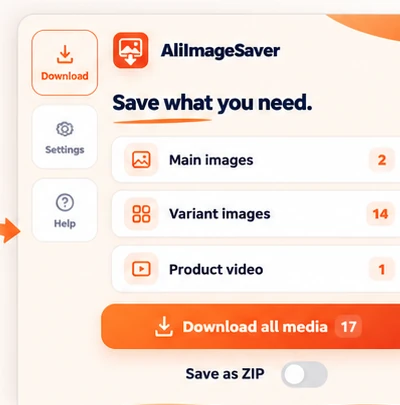
Only need certain photos? Click a single group instead, such as Variant images, and the ZIP will contain just those files. Our guide to saving AliExpress variant images explains that group in detail.
Name your ZIP files so you can find them later
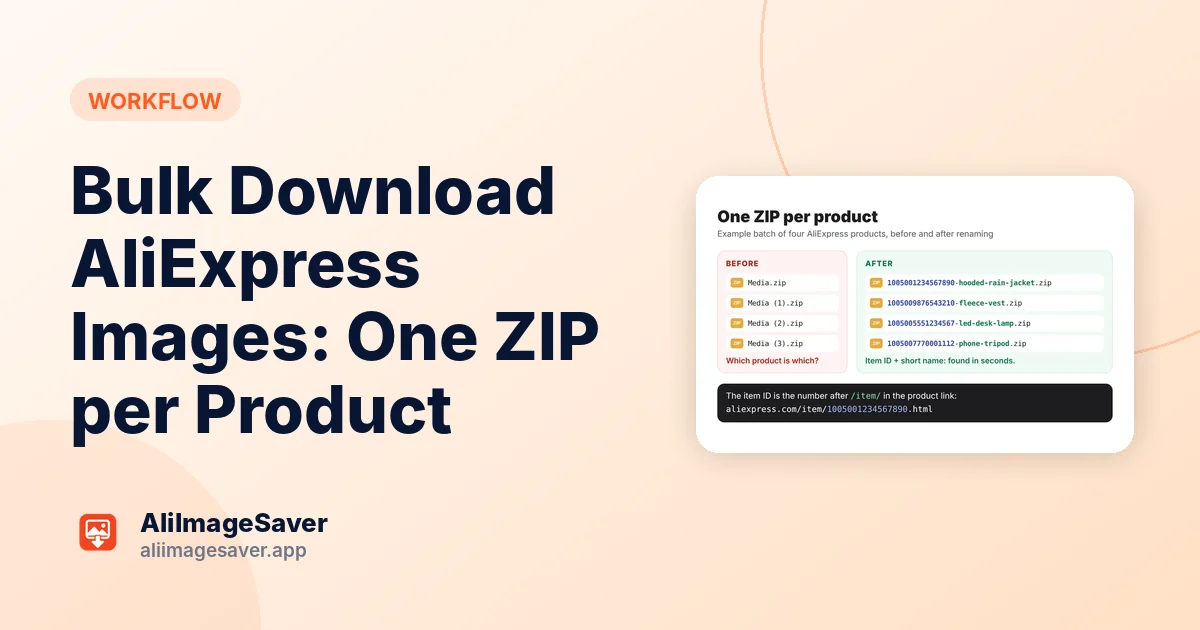
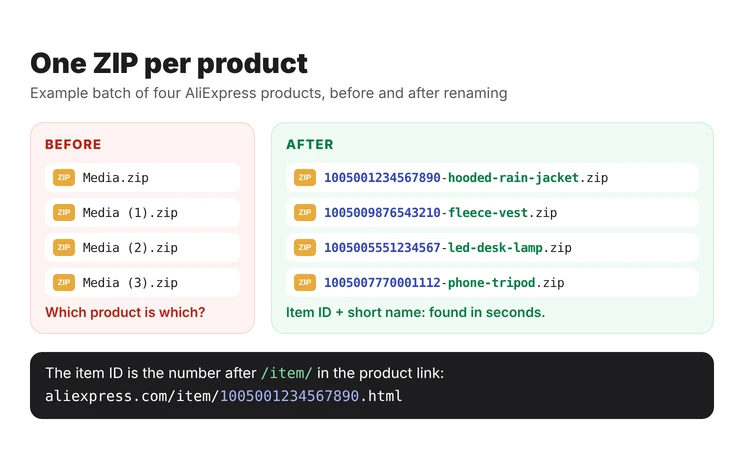
Every archive AliImageSaver creates is called Media.zip, and the files inside have numbered names such as main-image-1.jpg and variant-image-3.jpg. That's tidy for one product, but in a batch Chrome simply adds a number: Media (1).zip, Media (2).zip and so on. After ten products you can't tell them apart without opening each one.
The fix takes a few seconds per product: rename each ZIP as soon as it lands. A pattern that works well is the AliExpress item ID plus a short name, for example 1005001234567890-hooded-rain-jacket.zip.
The item ID is the long number in the product link, right after /item/. It stays the same even if the seller changes the title, so you can always find the listing again.
Keep a simple product sheet
A spreadsheet with one row per product turns a folder of ZIP files into something you can work with. A few columns are enough:
| Item ID | Product | Permission | Notes |
|---|---|---|---|
| 1005001234567890 | Hooded rain jacket | Yes, in chat | 6 colors, has video |
| 1005009876543210 | Fleece vest | Asked, waiting | Small description images |
| 1005005551234567 | LED desk lamp | Not asked yet | Ask for photos without text |
Because the ZIP name starts with the item ID, each row points straight to its file. Add the product link as a column too, or turn the item ID into a link. The permission column matters if you plan to use the photos in a store: product images belong to the seller or whoever made them, so ask before you publish them. Our guide to using AliExpress images for dropshipping explains how.
Check each ZIP before you move on
- Compare the count. The number of files in the ZIP should match the count the panel showed. If AliImageSaver says some files could not be added to the ZIP, refresh the page and save that product again.
- Look for the description images. If they're missing, the page probably hadn't loaded them yet. Scroll through the description and download again.
- Open a few photos at full size. If they look soft, see how to get full-size AliExpress images.
- Watch for WebP files. Some images are WebP inside even when the name ends in .jpg. Here's how to convert AliExpress WebP images to JPG.
Ready to start your batch? Add AliImageSaver to Chrome. It's free.
Frequently asked questions
Can I paste a list of AliExpress links and download all the images at once?
No. AliImageSaver works on the product page you have open, so you open each product in a tab and save it with a couple of clicks. That's still much faster than saving images one by one, and each product ends up in its own ZIP.
Why are all my ZIP files called Media.zip?
AliImageSaver gives every archive the same name, and Chrome adds a number when a file with that name already exists. Rename each ZIP right after it downloads, for example with the item ID and a short product name.
Does the ZIP include the product video?
Yes, if the product has a downloadable video and you choose Download all media. Not every listing has one.
Where do I find the AliExpress item ID?
It's the long number in the product link, right after /item/ and before .html.
Is AliImageSaver free?
Yes. It's free to install from the Chrome Web Store and works in Chrome on a computer.