How to Download AliExpress Images: Main, Variant & Description Photos
Also available in: Português · Español · Français
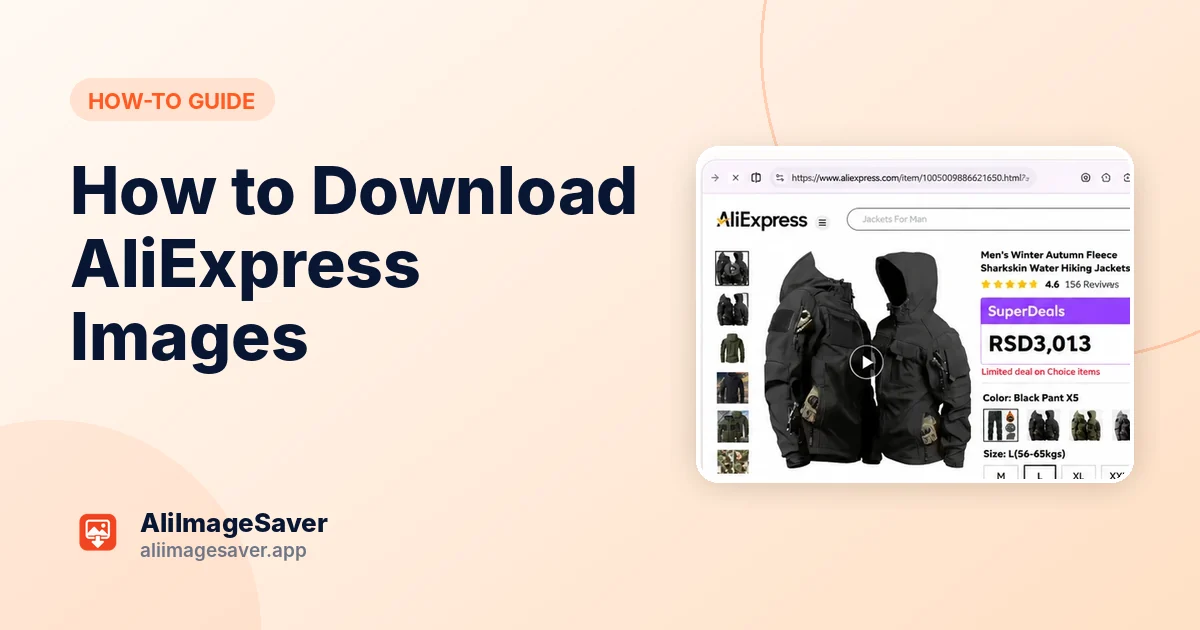
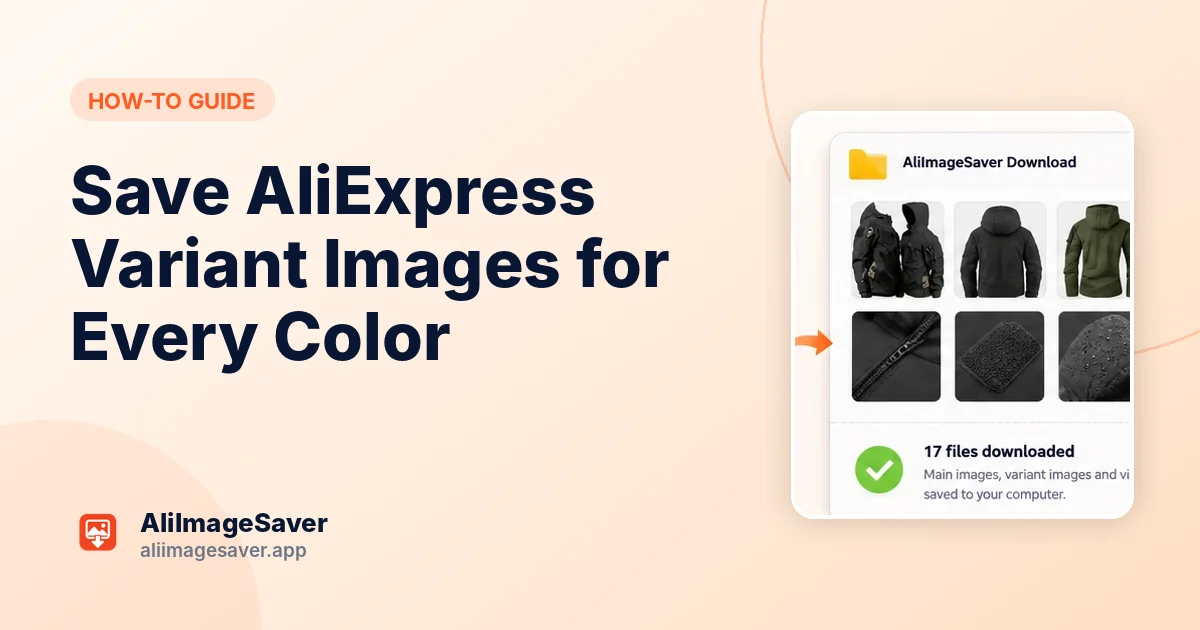
Whether you're building a product page for your store, comparing suppliers or saving references for a creative brief, sooner or later you need the photos from an AliExpress listing. The problem: one product can have dozens of images spread across the gallery, the color options and the description, and AliExpress has no "download all" button.
This guide shows two ways to download AliExpress images: the manual way, which is fine for one or two pictures, and the fast way, where you save every image from a product page in one go.
The three types of images on an AliExpress product page
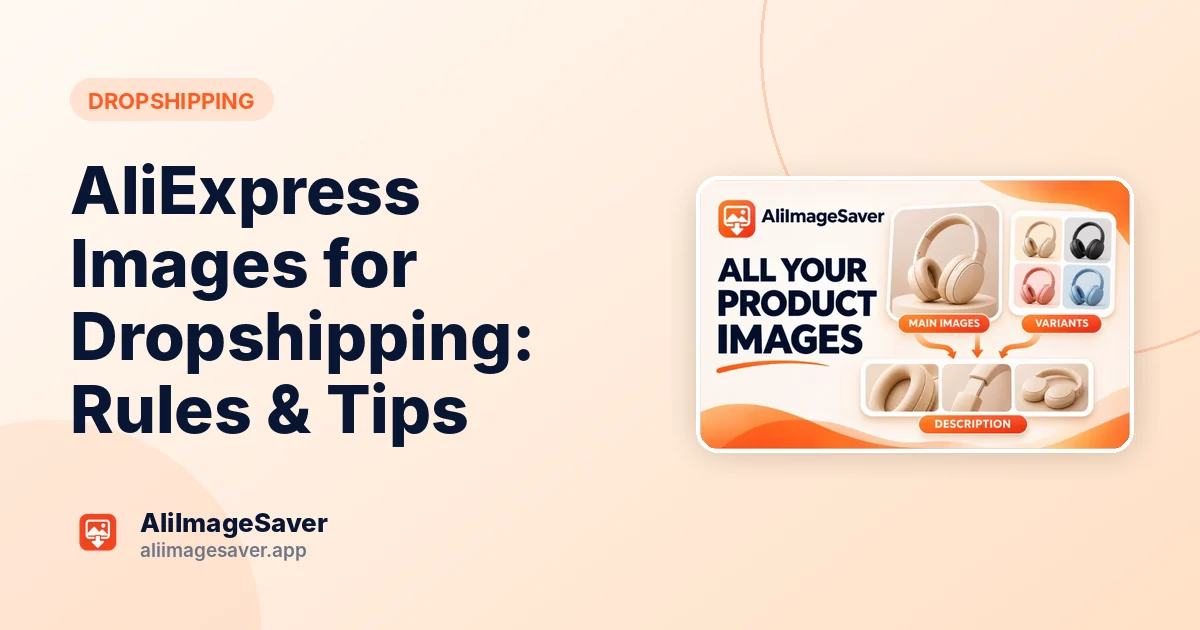
Before you start downloading, it helps to know where AliExpress keeps its images. Most product pages have three groups:
- Main images. The gallery at the top of the page. These are the hero shots you see first, usually the best-lit photos of the product.
- Variant images. The small pictures attached to options such as color, pattern or style. Selecting an option swaps the large photo for that variant.
- Description images. The long scrolling section under "Description". Sellers use it for size charts, close-ups, materials and lifestyle photos.
Many listings also include a product video, usually as the first item in the gallery. We cover that separately in our guide to downloading AliExpress videos.
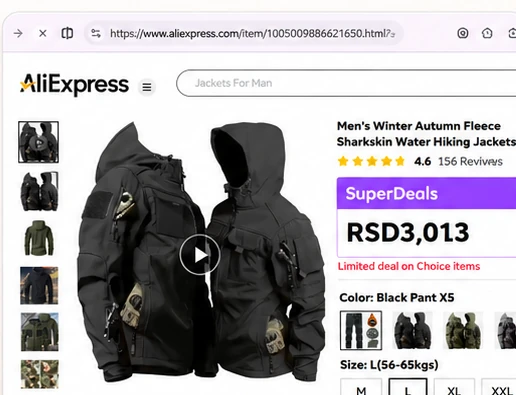
Method 1: Save AliExpress images manually
For a single photo, Chrome's built-in tools are enough:
- Open the product page and click the gallery image you want, so it shows in the large viewer.
- Right-click the image and choose Open image in new tab. This shows the file on its own, which makes it easier to check its size.
- Right-click again, choose Save image as… and pick a folder.
That works, but you'll notice the limits quickly:
- It's slow. A typical listing can have 6 to 8 gallery photos, a dozen or more variant pictures and 10 to 30 description images. Saving them one by one easily takes 15 minutes per product.
- You may get small copies. AliExpress often displays resized previews and thumbnails so pages load faster. If you save a preview instead of the full image, it will look blurry on your own site.
- Description images load late. They only appear after you scroll down, so it's easy to miss some.
- Files end up messy. Saved images get random file names, and photos from different products mix together in your Downloads folder.
Method 2: Download all AliExpress images at once with an AliExpress image downloader
AliImageSaver is a free Chrome extension built for exactly this job. It finds the media on a supported AliExpress product page and lets you save it in a couple of clicks.
- Install the extension from the Chrome Web Store and pin it to your toolbar so it's always one click away.
- Open an AliExpress product page and let it load fully. If you want the description images, scroll through the description once.
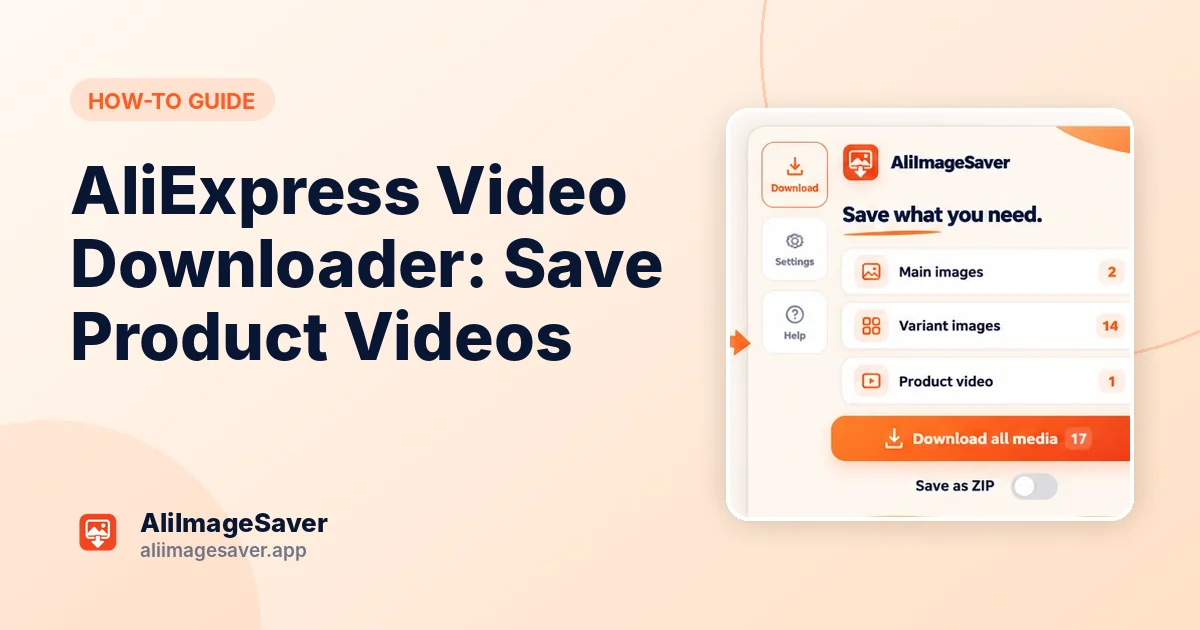
- Click the AliImageSaver icon. The panel shows what it found, grouped into main images, variant images and product video, with a count for each group.
- Choose what to save. Download a single group, or pick Download all media to get everything.
- Turn on "Save as ZIP" if you want all files in one archive. It's handy when you're collecting several products.
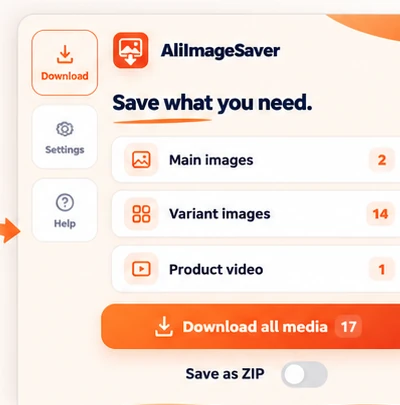
Files are saved through Chrome's normal downloads. You can organize them into a folder per product and choose to open the download folder automatically when it's done.
Tips for working with downloaded product images
- Keep one folder (or ZIP) per product and save the supplier's product link next to it. You'll be glad you did when you need to reorder or ask the seller a question. Saving a whole batch? Follow our bulk download workflow.
- Check the resolution before you publish anything. For store product photos, bigger is better: Shopify, for example, recommends square product images of 2048 × 2048 px.
- Rename the files you publish. Descriptive names like
black-hooded-winter-jacket-front.jpghelp image search and keep your library easy to search. - Pick, don't dump. You rarely need every photo. Choose the clearest gallery shots, one image per variant and a few detail shots from the description.
Troubleshooting
- Nothing detected? Refresh the product page and open the extension again once the page has finished loading.
- Missing description images? Scroll through the description section first so AliExpress loads them, then open the extension.
- No video in the list? Not every listing has a product video, and some videos aren't available as a downloadable file.
- An image won't open in your editor? It may be a WebP file inside, even if its name ends in .jpg. See how to convert AliExpress WebP images to JPG.
Can you use the images you download?
Saving images for reference is one thing; publishing them in your store or ads is another. Product photos belong to the seller or whoever created them, so ask the supplier for permission before you use them commercially. We explain how in Using AliExpress product images for dropshipping.
Frequently asked questions
Can I download all images from an AliExpress product at once?
Yes. AliExpress doesn't offer it, but AliImageSaver finds the main, variant and description images on a product page and saves them together, optionally as a single ZIP file.
Is AliImageSaver free?
Yes. AliImageSaver is free to install from the Chrome Web Store.
Why do my saved AliExpress images look blurry?
You probably saved a thumbnail or preview. Open the image in a new tab to check its size before saving, or use a downloader that saves the product's media files directly.
Can I do this on my phone?
Chrome extensions only run in Chrome on a computer. Chrome on Android and iPhone doesn't support extensions, so you'll need a desktop or laptop.